
⚡ Start / Stop Server
Windows
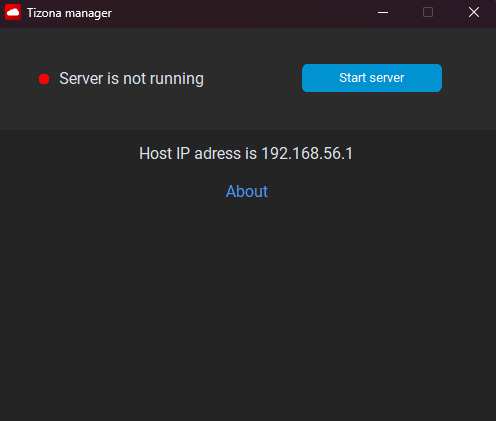
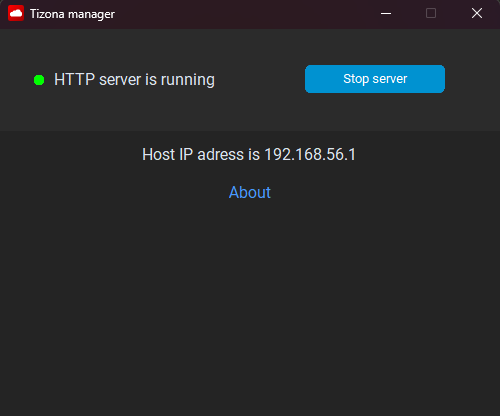
After installing TizonaHub using its installer, you will have access to Tizona Manager, which allows you to easily start and stop your server. To open it, press the Win key to open the Windows search bar and type "Tizona manager". If it doesn't appear, you can find it manually in the TizonaHub installation path (default: C:\Program Files (x86)\TizonaHub).
Once the program is open, click on "Start server" to launch the server.
⚠️ If the server does not start after waiting one or several minutes, try the following:- Restart Tizona Manager
- Start the server manually
Linux and Windows (manual start via terminal)
To manually start the server, open a terminal in the server root directory (InstallPath/TizonaHub/TizonaServer) and run the following command:
cd <InstallPath>/TizonaHub/TizonaServer
sudo pm2 start start.js
On Windows, make sure to run the terminal as administrator. The command will be the same but without sudo: pm2 start tizonaServer.js
If this did not work, execute the following command an try again:
npm install -g pm2🛜 To check if the server is running:
sudo pm2 status
To stop the server, you can run:
sudo pm2 stop start.jsYou can also stop it by its ID (in this case, 0):
sudo pm2 stop 0